The short version
The HDMI and DisplayPort connectors on the back of your motherboard are not driven by the motherboard. They are wired out from the graphics built into the processor. That gives you two causes, and both are the machine working as designed rather than a fault. Either the CPU you fitted has no integrated graphics at all, in which case those ports will never produce a picture no matter what you plug into them; or you have a discrete graphics card installed and the board has switched its own outputs off, which is a BIOS setting you can turn back on. Everything else — the cable, the monitor's input selection — is worth ruling out first because it takes thirty seconds.
The Board's Video Ports Belong to the CPU
This is the fact the rest of the page hangs on, and almost nobody is told it when they buy their first board.
A motherboard has no graphics processor of its own. The HDMI and DisplayPort sockets on the rear I/O panel are pass-throughs: they carry a signal that the CPU generates and the board routes to the back of the case. ASUS names them exactly that way in its troubleshooting documentation, describing the connectors as the "CPU integrated display output port (internal display)" and labelling the physical ports "HDMI/DP PORT CPU internal display output".
So the port being present tells you nothing about whether it will work. The board fits those connectors because the socket can hold a processor with integrated graphics; it has no way of knowing which processor you will put in it. Fit one without graphics and the connector is a dead end — on a board that is otherwise perfectly healthy, and that would drive a monitor happily through a graphics card in the top PCIe slot.
That is why ASUS's own no-display checklist opens with the CPU rather than the board. Its first instruction is: "First, confirm whether the CPU supports graphics." Do that before you suspect the board, before you clear CMOS, and certainly before you return anything.
The quick test that splits the problem in two
If you have a graphics card installed, move the monitor cable from the board's HDMI to the card's own output and restart. Get a picture there and you have proved the board posts, the CPU runs and the memory trained — the whole machine is fine, and what you have is a question about the board's video outputs specifically, which is the rest of this page. Get no picture on either, and the problem is somewhere else entirely: see If Nothing Posts at All below.
Does Your CPU Have Integrated Graphics?
There is a documented way to answer this for any processor, and it takes a minute. ASUS publishes it as a standalone FAQ, "How to determine if my CPU supports Integrated graphics?", and the method is the same shape for both CPU vendors: look the exact model up on the vendor's own specification page and check whether a graphics section exists.
| Intel | Find the processor's page on Intel's site. ASUS's rule: "If you can find the "Processor Graphics" option in the specifications, the CPU supports Integrated Graphics", and "If you can't find the "Processor Graphics" option in the specifications, the CPU doesn't support Integrated Graphics." |
| AMD | Find the processor's page on AMD's site. ASUS's rule: "If you can find the "Graphics Specifications" option , the CPU supports Integrated Graphics", and the absence of that section means it does not. |
The presence or absence of that one section on the vendor's page is the whole answer. ASUS gives one worked example of a processor that lacks it: the i9-10900KF.
Why there is no list of iGPU processors on this page
We are not going to publish one, and you should be careful with any list you find. Model-suffix conventions are not a standard — they carry exceptions, and they are redefined from one generation to the next, so a list is out of date the moment a new range ships. The lookup above is the only method that is still right next year. Treat the CPU vendor's own specification page as the arbiter and nothing else, including us.
If the lookup says your processor has no integrated graphics, you are finished: the board's video outputs cannot work with that CPU in the socket, and no BIOS setting, cable or firmware update changes that. You need a graphics card, and the monitor plugs into the card.
You Have Both a GPU and an iGPU: iGPU Multi-Monitor
The other case is the frustrating one. The processor does have integrated graphics, a discrete card is installed as well, and you want to run a second monitor from the board's HDMI — but that port is dark while the card's outputs work.
This is a BIOS setting. With a graphics card present, the platform may leave the integrated display outputs switched off, and there is an option that keeps them live alongside the card. On ASUS's Intel boards it is reached like this, in ASUS's own wording: "Select System Agent (SA) Configuration->Graphics Configuration->iGPU Multi-Monitor and confirm that it is set to Enable."
That menu path is ASUS's, on an Intel platform. Other vendors arrange their BIOS differently and the setting travels under other names, so do not go hunting for those exact three levels on a GIGABYTE, MSI or ASRock board — look for a graphics or display configuration section, and use your board's manual, which documents the menu tree for your model. Our BIOS update guide covers getting into the BIOS setup utility in the first place if that part is unfamiliar.
One consequence worth knowing before you go looking: this setting only matters when a discrete card is installed. Pull the card out and the integrated outputs are the only ones there are, so the board uses them.
Check the Monitor Side
Two things on the far end of the cable produce exactly the same symptom, and both are quicker to rule out than anything above.
The input the monitor is showing. A monitor with several inputs does not always switch to the live one on its own. ASUS's advice is to match the selection to the cable you actually used: "For example, if the computer is currently connected via DP, select DP as the monitor's display output, as shown below." If you moved the cable from a graphics card to the board, or from one port to another, this is the step people skip.
The cable and the connector. ASUS's instruction is to "Verify that the signal cable (VGA/DVI/HDMI/DisplayPort) is properly connected to the monitor" — at both ends, seated fully. A DisplayPort connector in particular can sit in far enough to feel secure without being latched. If you have a spare cable, swapping it in is the fastest way to eliminate a broken one, and trying a different port on the monitor eliminates a dead input.
None of this is glamorous, and it resolves a meaningful share of no-signal reports. Do it before you open the case.
Reading the Video Row on a Spec Sheet
Which video connectors a given board actually wires out — whether there is an HDMI, a DisplayPort, both, or neither, and which version of each — is decided per model by the board maker. Two boards on the same chipset routinely differ here, and it is a common reason a build ends up with the wrong outputs on the back.
Our own specification tables do not settle this one. They cover socket, chipset, form factor, memory, PCIe and M.2 slots, SATA, rear USB, networking and audio; the video outputs are not among the rows we publish, so a board's page here is not the place to check them. For that question the board's own product page and its manual are the reference, and the rear-I/O diagram in the manual is the clearest form of the answer: it labels every connector on the panel.
Two things to hold in mind while you read it. A listed HDMI or DisplayPort is still a CPU-driven output, so everything above still applies — a board that lists both gives you nothing if the processor has no graphics. And the version stated against a port is a property of that board and that CPU generation together, which is why it is not a number we will generalise for you here. Our guide to USB headers and ports covers the rest of what is on that same rear panel.
If Nothing Posts at All
This page assumes the machine is running. Fans spin, drives spin up, the board reaches the point where it would hand a picture to a monitor. If that is not what is happening — if the board never gets that far — then no display is a symptom of a different problem, and none of the causes above apply.
The clue is on the board itself. Most boards carry a set of debug LEDs that light in sequence during startup and stay lit on whichever stage failed, including a VGA indicator specifically for the graphics step. Our guide to a motherboard that will not POST covers what each of those lights means, what to check for each one, and how to clear CMOS safely. Start there instead.
And if the machine posts but you have just installed a graphics card that is not being seen at all, the slot may be the issue rather than the display path — our PCIe speeds and slots guide explains which x16 slot is wired to the CPU and why a card in the wrong one may not come up.
What we checked, and what we didn't
Every quoted sentence on this page comes from the two ASUS support documents linked below, read on 9 September 2026. Nothing here is a test result: no machine was assembled, no processor was swapped and no BIOS setting was toggled to see what happened. The iGPU Multi-Monitor menu path is ASUS's, on an Intel platform, and is reproduced as that vendor's example rather than as wording that holds on any other board. We have deliberately not published a list of which processors have integrated graphics, and we do not state the video outputs of any specific board, because both are facts that belong to their manufacturer's own specification page.
Sources
- ASUS: [Motherboard] Troubleshooting - No Power/No Boot/No Display — that the rear connectors are the CPU's integrated display output, the instruction to confirm the CPU supports graphics first, the iGPU Multi-Monitor menu path and setting, and the signal-cable and monitor-input checks
- ASUS: [Motherboard] How to determine if my CPU supports Integrated graphics? — the Intel "Processor Graphics" and AMD "Graphics Specifications" lookup method, and the i9-10900KF example of a processor without it
Published 9 September 2026. Both ASUS support documents quoted above were read on 9 September 2026.
Related Guides
Motherboard Won't POST
The other branch: the board never reaches the point of sending a picture. What a stuck CPU, DRAM, VGA or BOOT debug LED means.
9 min read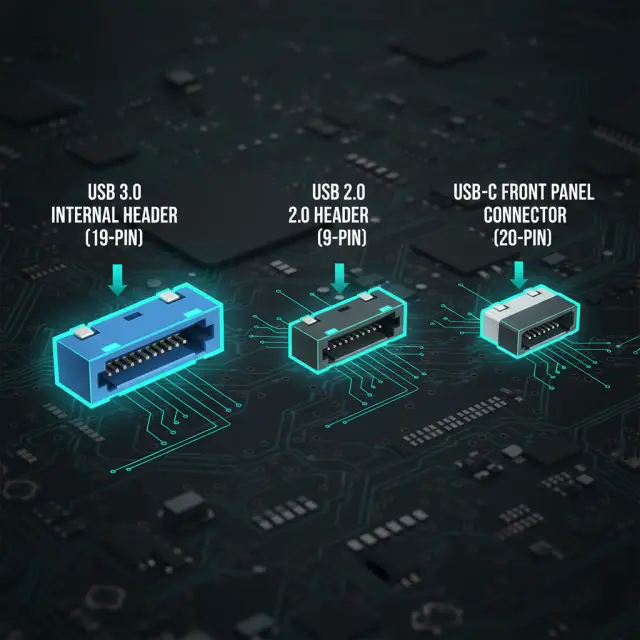
USB Headers & Ports
The rest of the rear panel: which USB standards a board wires out, what the speeds mean, and the internal headers behind them.
8 min read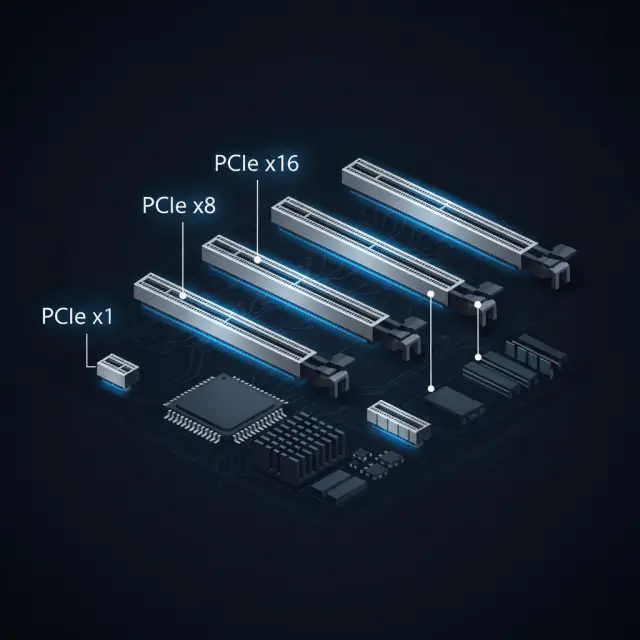
PCIe Speeds & Slots
Which x16 slot is wired to the CPU, how lanes are shared, and why a graphics card in the wrong slot may not come up.
8 min read