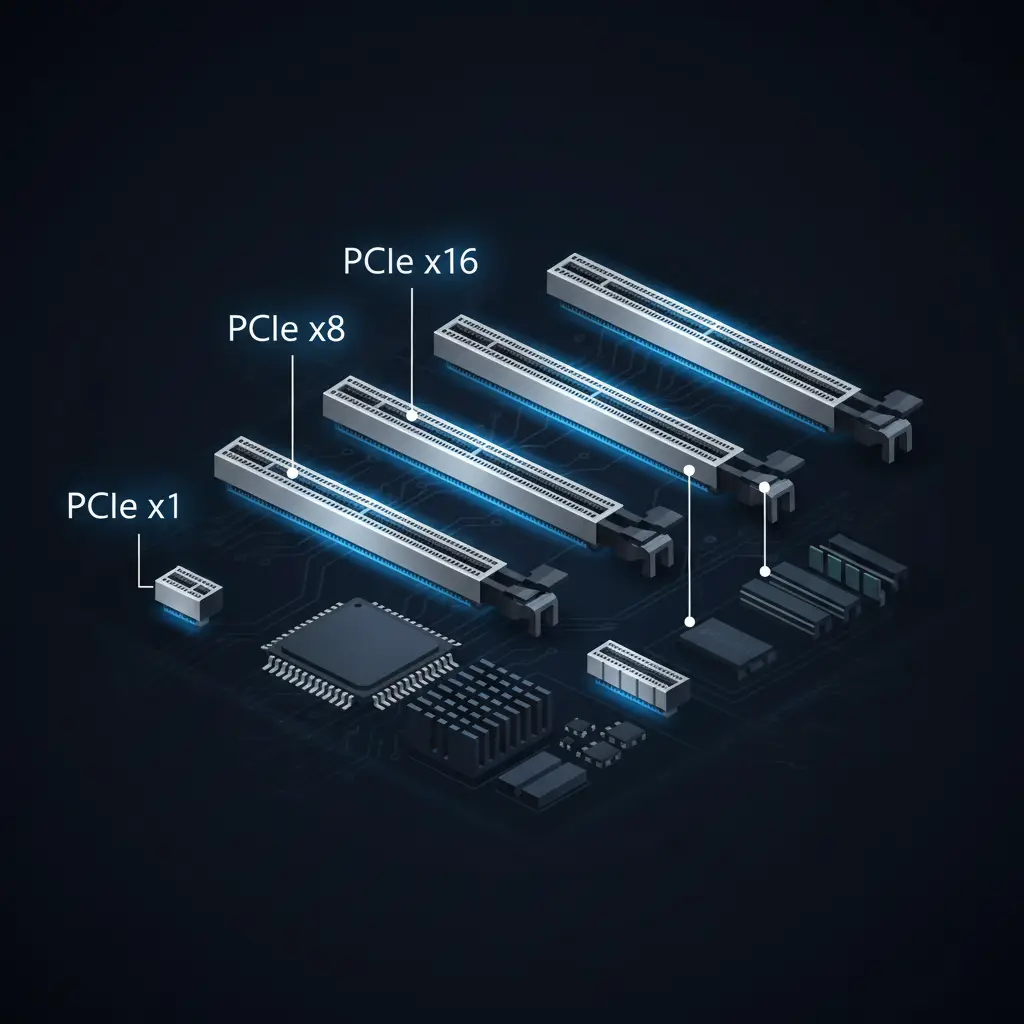
PCIe Speeds & Slots Explained
Everything you need to know about PCIe generations, lane configurations, and bandwidth
Everything you need to know about PCIe generations, lane configurations, and bandwidth
PCIe (Peripheral Component Interconnect Express) is the primary high-speed expansion bus used on every modern motherboard. If you have a graphics card, an NVMe SSD, a WiFi card, a capture card, or a sound card in your PC, it is connected to the CPU and chipset through PCIe.
Unlike older bus standards such as PCI and AGP, which used a shared parallel architecture, PCIe uses a serial point-to-point connection. Each device gets its own dedicated data pathway (called "lanes") directly to the CPU or chipset, rather than sharing a single bus with every other device. This eliminates bottlenecks and allows each component to use its full allocated bandwidth without competing for resources.
Think of it this way: old PCI was a single-lane road where every device had to take turns. PCIe is a multi-lane highway where each device gets its own set of lanes. The more lanes a device has, the more data it can move simultaneously.
PCIe has gone through several generations, each doubling the bandwidth of the last. The specification also defines physical slot sizes -- from tiny x1 slots for basic expansion cards to full-length x16 slots for graphics cards. Understanding both the generation (speed per lane) and the slot configuration (number of lanes) is key to getting the most out of your motherboard.
Each new PCIe generation doubles the per-lane bandwidth of the previous one. This is the single most important thing to understand about PCIe: generation controls speed per lane, and slot size controls how many lanes you have. Together, they determine your total available bandwidth.
Here is a complete breakdown of every PCIe generation you will encounter on modern and recent motherboards:
| Generation | Per-Lane Bandwidth | x1 Speed | x4 Speed | x8 Speed | x16 Speed | Year |
|---|---|---|---|---|---|---|
| PCIe 3.0 | ~1 GB/s | 1 GB/s | 4 GB/s | 8 GB/s | 16 GB/s | 2010 |
| PCIe 4.0 | ~2 GB/s | 2 GB/s | 8 GB/s | 16 GB/s | 32 GB/s | 2017 |
| PCIe 5.0 | ~4 GB/s | 4 GB/s | 16 GB/s | 32 GB/s | 64 GB/s | 2019 |
| PCIe 6.0 | ~8 GB/s | 8 GB/s | 32 GB/s | 64 GB/s | 128 GB/s | 2022 |
The speeds listed above are unidirectional (one-way) throughput figures. PCIe is a full-duplex interface, meaning it can transmit and receive simultaneously, but real-world device performance is typically measured using the unidirectional number since most operations are primarily one-directional (reading from an SSD, rendering frames from a GPU, and so on).
PCIe is fully backward and forward compatible. A PCIe 3.0 card works perfectly in a PCIe 5.0 slot, and a PCIe 5.0 card works in a PCIe 3.0 slot. The connection will simply operate at the speed of whichever component -- card or slot -- supports the lower generation. You will never damage hardware by mixing generations.
For most builders today, PCIe 4.0 is the mainstream standard. PCIe 5.0 support is available on Intel 12th/13th/14th Gen and AMD Ryzen 7000 platforms but consumer devices that actually need PCIe 5.0 bandwidth are still emerging. PCIe 6.0 hardware is expected in data centers first, with consumer adoption still a few years away.
PCIe slots come in four standard physical sizes, named by the number of lanes they provide: x1, x4, x8, and x16. The "x" stands for "times" or "by," so x16 means 16 lanes.
The longest slot on your motherboard, measuring about 89mm. This is where your graphics card goes. Every modern GPU uses an x16 connector. Most motherboards have one or two x16-length slots, with the top one typically wired directly to the CPU for maximum performance.
Physically shorter than x16, these are relatively uncommon as standalone slots on consumer motherboards. However, many second x16-length slots are actually only wired for x8 lanes electrically. You will also find x8 slots on workstation and server boards for RAID controllers, high-end network cards, and other bandwidth-hungry devices.
A medium-length slot used for some network adapters, RAID controllers, and NVMe adapter cards. On most consumer motherboards, x4 lanes are more commonly allocated to M.2 slots rather than physical x4 PCIe slots.
The smallest PCIe slot, measuring about 25mm. Used for low-bandwidth expansion cards like WiFi adapters, sound cards, USB expansion cards, and serial port cards. These are perfectly adequate for devices that do not need much throughput.
Look at your motherboard manual to check actual electrical wiring. A slot that looks like x16 might only be wired for x4 lanes. The physical slot size only tells you the maximum number of lanes it can accept -- the actual wiring depends on how the manufacturer routed the PCIe lanes from the CPU and chipset. This is especially common for the second and third x16-length slots on a board.
An important physical compatibility note: you can always install a smaller card in a larger slot. An x1 WiFi card works fine in an x16 slot -- it will just use one lane. However, you generally cannot fit a larger card into a smaller slot unless the slot has an open-ended design (some motherboards do this with x4 slots).
Understanding PCIe bandwidth in practical terms helps you make smart purchasing decisions. The key insight is this: bandwidth doubles with each generation, so fewer lanes on a newer generation can match more lanes on an older one.
Here are some practical equivalencies:
This matters because it means a PCIe 5.0 platform can deliver the same bandwidth to your GPU using only half the lanes, freeing up the remaining lanes for other devices like NVMe drives.
Current-generation GPUs (NVIDIA RTX 40-series, AMD RX 7000-series) are designed around PCIe 4.0 x16 bandwidth. Benchmarks consistently show that even running these GPUs at PCIe 3.0 x16 only results in a 1-3% performance loss in most gaming scenarios. The performance difference between PCIe 4.0 x16 and 5.0 x16 for GPUs is effectively zero right now.
Where PCIe generation matters most today is NVMe storage. A Gen 4 NVMe SSD using x4 lanes can deliver up to ~7,000 MB/s sequential reads. A Gen 5 NVMe SSD on x4 lanes can reach ~14,000 MB/s. If you are doing large file transfers, video editing, or working with massive datasets, the bandwidth difference is significant and tangible.
Your CPU and chipset have a finite number of PCIe lanes to distribute across all slots and M.2 connectors. When you populate one slot or M.2 connector, it may reduce the lanes available to another. This is why reading your motherboard manual is essential -- especially if you plan to use multiple NVMe drives alongside a GPU and expansion cards.
Always install your graphics card in the top x16 slot. This is not just a suggestion -- it is the single most important PCIe rule for any PC build. Here is why.
The top x16 slot on virtually every motherboard connects directly to the CPU's PCIe lanes. This provides the shortest, fastest, most direct data path between your GPU and processor. The connection does not pass through any intermediary chip, which means the lowest possible latency and the full bandwidth your CPU's PCIe controller can provide.
Second and third x16-length slots typically connect through the chipset rather than directly to the CPU. The chipset acts as a traffic controller for its own set of PCIe lanes, but the chipset itself connects to the CPU through a limited uplink (usually PCIe 4.0 x4 or x8, depending on the platform). This means all devices connected through the chipset share that uplink bandwidth.
If you put your GPU in a chipset-connected slot, it would be sharing bandwidth with your NVMe drives, USB controllers, WiFi, and every other chipset-attached device -- all through a bottleneck that is a fraction of what the top slot provides.
Additionally, many second x16-length slots are not even wired for a full 16 lanes. It is common for the second slot to be electrically x4 or x8, which further limits your GPU's available bandwidth.
Multi-GPU configurations (NVIDIA SLI and AMD CrossFire) are essentially dead for gaming. NVIDIA dropped SLI support after the RTX 20-series, and AMD discontinued CrossFire branding. Almost no modern games support multi-GPU rendering, and the few that do rarely scale well. Focus your budget on the best single GPU you can afford and put it in the top x16 slot.
The exception is professional workloads: some rendering, machine learning, and compute applications can use multiple GPUs effectively. If you need multi-GPU for professional work, look at HEDT platforms (like AMD Threadripper) that provide more CPU-direct PCIe lanes.
M.2 is a physical form factor for compact expansion cards, and the most common use is NVMe SSDs. These drives connect to your motherboard via PCIe lanes, typically using an x4 configuration. The M.2 slot is essentially a compact PCIe x4 slot in a different physical format.
The PCIe generation of your M.2 slot directly determines the maximum speed your NVMe SSD can achieve:
These are peak sequential speeds. Random read/write performance (which affects everyday responsiveness, game loading, and application launch times) improves with each generation too, but the gains are less dramatic than the headline sequential numbers suggest.
Just like full-size PCIe slots, M.2 connectors get their lanes from either the CPU or the chipset. The first M.2 slot (often labeled "M2_1" or "CPU M.2") on most motherboards is wired directly to the CPU, giving it the best possible performance and the highest PCIe generation the CPU supports. Additional M.2 slots are typically routed through the chipset.
For most users, the practical difference between a CPU-connected and chipset-connected M.2 slot is negligible for everyday tasks. It becomes relevant for sustained sequential transfers or if the chipset uplink is already saturated by other devices.
Installing an M.2 NVMe drive in certain slots may disable SATA ports 5 and 6 on some motherboards. Always check your motherboard manual. This happens because the M.2 slot and those SATA ports share the same PCIe/SATA lanes from the chipset -- the controller can use them for one purpose or the other, but not both simultaneously.
Not all M.2 drives use PCIe. Some M.2 SSDs use the SATA protocol instead, which limits them to ~550 MB/s regardless of the slot's PCIe capability. These drives are keyed differently (B+M key vs. M key) and are an older, cheaper option. Most modern M.2 SSDs are NVMe, but double-check before buying -- especially if you see suspiciously low prices. An M.2 SATA drive will work in most M.2 slots, but it will not benefit from PCIe bandwidth at all.
Every chipset has a different pool of PCIe lanes to distribute. The CPU provides a set of lanes (usually reserved for the primary GPU slot and the first M.2 slot), while the chipset provides additional lanes for secondary slots, M.2 connectors, SATA ports, USB controllers, and other onboard features.
Here is how the most popular current chipsets compare:
| Chipset | CPU PCIe Lanes | Chipset PCIe Lanes | Typical M.2 Slots | Notes |
|---|---|---|---|---|
| Intel Z790 | 20 (PCIe 5.0) + 4 (4.0) | 28 (PCIe 4.0/3.0) | 3-5 | Best for enthusiasts |
| Intel B760 | 20 (PCIe 5.0) + 4 (4.0) | 14 (PCIe 4.0/3.0) | 2-3 | Great for most users |
| AMD X670E | 24 (PCIe 5.0) + 4 (4.0) | 12 (PCIe 4.0) | 3-4 | Full PCIe 5.0 support |
| AMD B650 | 24 (PCIe 4.0) + 4 (5.0) | 8 (PCIe 4.0) | 2-3 | Best value AM5 |
A few things to keep in mind when reading this table:
Here are the most practical takeaways from everything covered in this guide:
For most builders in 2025, a motherboard with PCIe 4.0 x16 for the GPU and at least one PCIe 4.0 x4 M.2 slot is all you need. PCIe 5.0 is a nice future-proofing bonus but is not yet a necessity for gaming or general productivity. Spend your budget on the GPU and SSD themselves rather than chasing the highest PCIe spec on your motherboard.
PCIe 5.0 x16 + PCIe 5.0 M.2
PCIe 5.0 x16 + PCIe 5.0 M.2
PCIe 5.0 x16 + PCIe 5.0 M.2
PCIe 5.0 x16 + PCIe 5.0 M.2
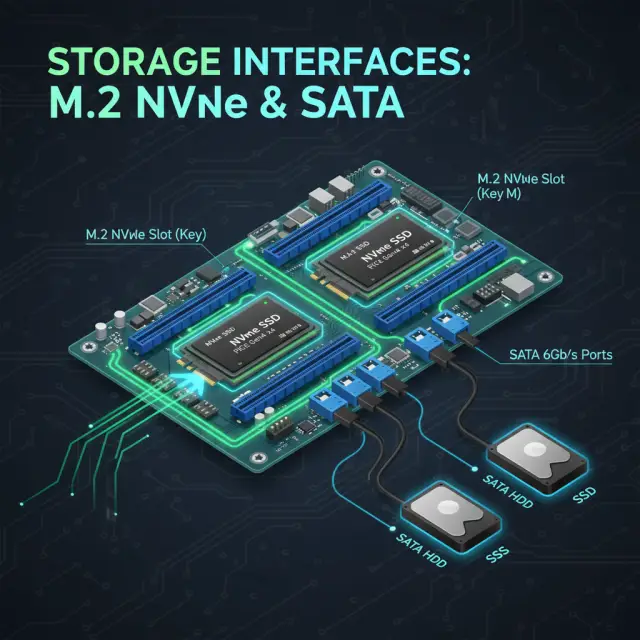
M.2 NVMe vs SATA, PCIe Gen 4 vs Gen 5 SSDs, and optimal storage configurations for your build.
7 min read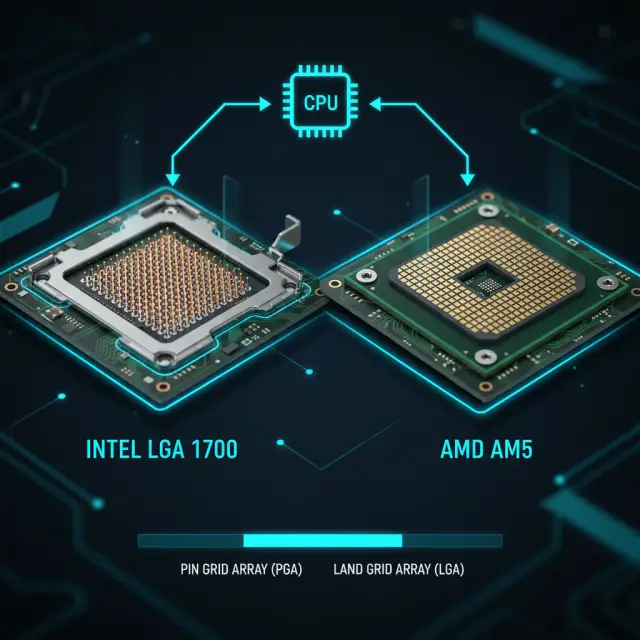
Everything about Intel LGA 1700, AMD AM5, and how to pick the right motherboard socket for your processor.
7 min readWhat the finite lane budget looks like when it bites: an M.2 slot that switches off a SATA port, and a slot that only speaks PCIe.
8 min readYou have just fitted a graphics card and the board's own HDMI went dark. That is a BIOS setting, not a fault.
7 min read