Storage Options Guide
M.2 NVMe, SATA, PCIe generations, and building the optimal storage configuration
M.2 NVMe, SATA, PCIe generations, and building the optimal storage configuration
Modern motherboards support several types of storage, each with different interfaces, speeds, form factors, and price points. Understanding the differences is essential to picking the right combination for your build. Here is a complete comparison of every storage type you will encounter:
| Type | Interface | Max Speed | Form Factor | Cost per TB |
|---|---|---|---|---|
| SATA SSD | SATA III | 550 MB/s | 2.5" | Low ($50-70) |
| M.2 SATA SSD | SATA III | 550 MB/s | M.2 2280 | Low ($50-70) |
| NVMe Gen 3 | PCIe 3.0 x4 | 3,500 MB/s | M.2 2280 | Low-Med ($50-80) |
| NVMe Gen 4 | PCIe 4.0 x4 | 7,000 MB/s | M.2 2280 | Medium ($60-100) |
| NVMe Gen 5 | PCIe 5.0 x4 | 14,000 MB/s | M.2 2280 | High ($120-200) |
| HDD | SATA III | 250 MB/s | 3.5" | Very Low ($15-25) |
For most users in 2025, a PCIe Gen 4 NVMe SSD offers the best balance of speed, price, and availability. Gen 5 drives are fast but expensive and generate more heat.
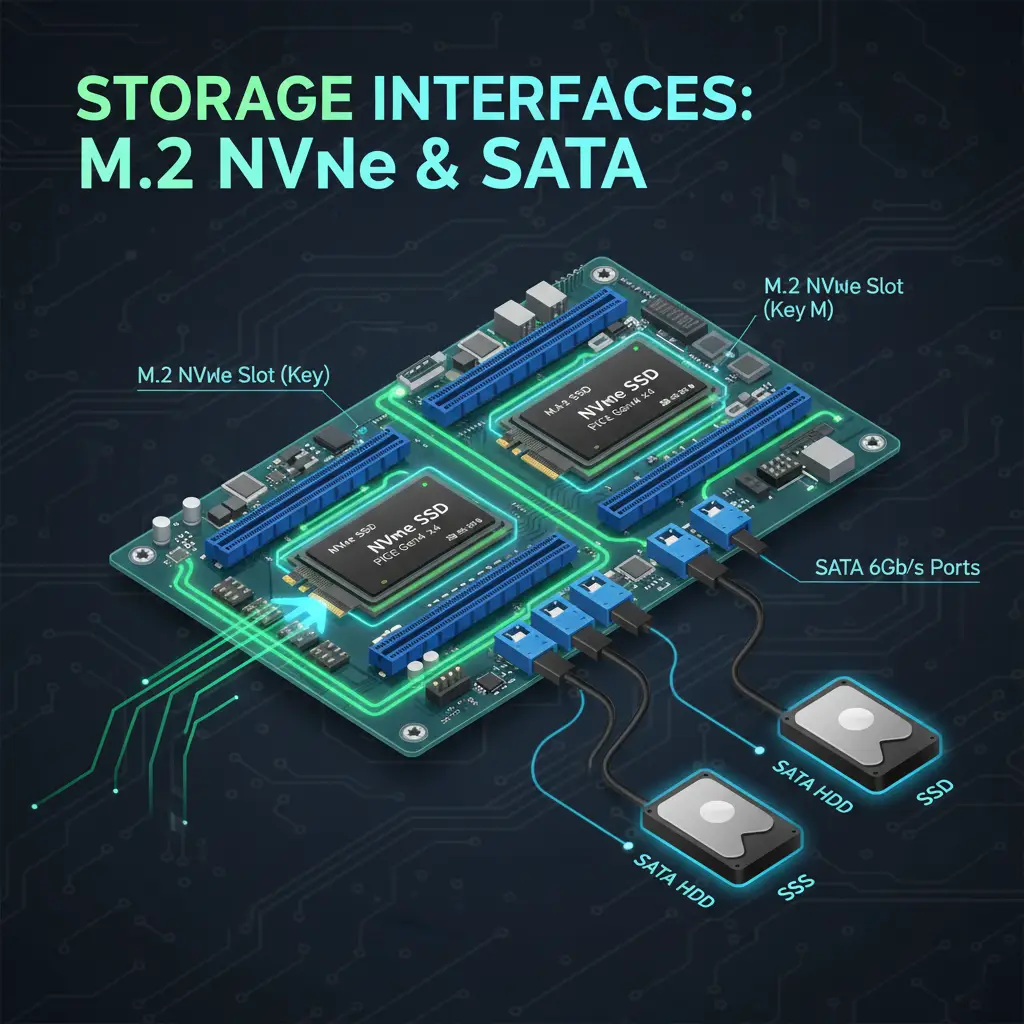
M.2 is the form factor (the physical slot shape on your motherboard). NVMe is the protocol (the communication standard the drive uses to talk to the CPU). These two terms are often used interchangeably, but they describe different things. An M.2 slot can support NVMe drives, SATA drives, or both -- depending on how the motherboard manufacturer wired it.
M.2 2280 is the most common size designation. The "22" means 22mm wide, and the "80" means 80mm long. Nearly every consumer M.2 SSD uses this form factor. Some compact drives use M.2 2242 (42mm long) or M.2 2230 (30mm long, commonly found in laptops and the Steam Deck), but 2280 is the standard for desktop motherboards.
M.2 slots use a key system to determine compatibility. M-key slots support NVMe drives and are the most common on modern motherboards. B+M-key slots support SATA M.2 drives. An M-key slot can also accept SATA M.2 drives on many boards, but this depends on the motherboard's controller configuration.
Not all M.2 slots support NVMe. Some budget motherboards include M.2 slots that are SATA-only, meaning they will not work with NVMe drives at all. These slots look identical to NVMe-capable M.2 slots, so the only way to know is to check the motherboard specifications or manual.
One of the biggest advantages of M.2 is the clean installation experience. The drive connects directly to the motherboard with no cables needed -- no SATA data cable, no power cable from the PSU. You simply slot the drive in at an angle, press it down, and secure it with a single screw. This eliminates cable clutter and simplifies the build process significantly.
When buying an M.2 drive, verify your slot supports NVMe if you're buying an NVMe drive. Some budget boards have M.2 slots that only support SATA. Installing an NVMe drive in a SATA-only M.2 slot will result in the drive not being detected at all.
SATA III (6 Gbps) ports are the L-shaped connectors found along the edge of your motherboard, typically on the right side. Despite being the oldest storage interface still in active use on consumer boards, SATA remains essential for connecting 2.5" SSDs, 3.5" HDDs, and optical drives.
The number of SATA ports varies significantly by motherboard tier:
Each SATA connection requires two cables: a SATA data cable that runs from the drive to the motherboard's SATA port, and a SATA power cable from your power supply to the drive. The data cable is a thin, flat cable (usually included with the motherboard), while the power connector comes from one of your PSU's SATA power chains. Make sure your PSU has enough SATA power connectors for all the drives you plan to install.
The jump from PCIe Gen 4 to Gen 5 doubles the theoretical bandwidth available to NVMe drives. But raw speed numbers do not tell the whole story. Here is a detailed comparison to help you decide which generation makes sense for your build:
| Feature | PCIe Gen 4 NVMe | PCIe Gen 5 NVMe |
|---|---|---|
| Sequential Read | Up to 7,000 MB/s | Up to 14,000 MB/s |
| Sequential Write | Up to 6,500 MB/s | Up to 12,000 MB/s |
| Price (1TB) | $60-100 | $120-200 |
| Price (2TB) | $100-150 | $200-350 |
| Heat Generation | Moderate | High |
| Heatsink Required | Recommended | Essential |
| Real-World Gaming Impact | Minimal vs Gen 3 | Minimal vs Gen 4 |
The sequential speed numbers are impressive on paper, but they primarily matter for sustained large file transfers -- copying huge video files, working with uncompressed project assets, or moving entire game libraries. For everyday tasks like booting your OS, launching applications, and loading game levels, the difference between Gen 4 and Gen 5 is barely perceptible.
Gen 5 drives also generate significantly more heat than Gen 4 drives due to the higher data throughput and more complex controllers. Without an adequate heatsink, a Gen 5 NVMe drive will thermal throttle under sustained load, reducing its performance to Gen 4 levels or below. Most high-end motherboards include built-in M.2 heatsinks, but verify this before buying a Gen 5 drive.
For gaming and general use, PCIe Gen 4 NVMe is more than enough. Gen 5 primarily benefits large file transfers, video editing, and specific workstation tasks. Unless your workflow involves moving massive files daily, the extra cost and heat of Gen 5 are hard to justify.
The number of storage drives in your system depends on your use case, budget, and how you want to organize your data. Here are the most common configurations, from simple to complex:
1x 1TB NVMe Gen 4 (OS + games + files). A single 1TB drive handles everything for a budget-conscious builder. Windows, your game library, documents, and media all live on one fast drive. This is the simplest configuration with zero cable management concerns if using an M.2 drive.
1x 1TB NVMe Gen 4 (OS + apps) + 1x 2TB NVMe Gen 4 (games). Separating your operating system from your game library makes management easier. The OS drive stays lean and fast, while the dedicated game drive can be filled and managed independently. Modern games regularly exceed 100GB each, so 2TB gives you room for 15-20 large titles.
1x 1TB NVMe Gen 4 (OS) + 1x 2TB NVMe Gen 4 (active projects) + 1x 4TB HDD (archive). The OS drive stays clean, active project files live on fast NVMe storage for responsive editing, and completed projects move to the high-capacity HDD for long-term archival. This three-tier approach balances speed, capacity, and cost effectively.
1x 2TB NVMe Gen 5 (OS + scratch disk) + 2x 4TB NVMe Gen 4 (working data) + NAS backup. Professional workstations benefit from Gen 5 speed for scratch disk operations (video rendering, database queries, virtual machine storage). Large NVMe data drives keep active datasets fast, while network-attached storage handles backup and collaboration.
This is one of the most critical and most overlooked aspects of storage planning on a motherboard. Many motherboards share bandwidth between M.2 slots and SATA ports. This means installing a drive in a particular M.2 slot can disable one or more SATA ports on the board, and vice versa.
This happens because the M.2 slot and certain SATA ports are wired to the same PCIe or SATA lanes from the chipset. The controller can route those lanes to the M.2 slot or to the SATA ports, but not both simultaneously. When you install a drive in the M.2 slot, the controller automatically switches those shared lanes to the M.2 slot, and the corresponding SATA ports become inactive.
Here is what you need to know:
Before building, map out your storage plan and check the motherboard manual for lane sharing. Some M.2/SATA combinations are mutually exclusive. If you plan to use multiple M.2 NVMe drives alongside several SATA drives, you may find that your motherboard cannot support all of them simultaneously.
These are well-tested, widely available drives that deliver strong performance and reliability at their respective price points. Prices fluctuate frequently, so check current pricing before purchasing.
Before purchasing drives or assembling your build, follow this step-by-step process to ensure your storage configuration works as intended:
If budget allows, choose a motherboard with more M.2 slots than you need right now. Adding another NVMe drive later is one of the easiest and most impactful upgrades you can make -- no cable management, no power connector concerns, just slot it in and go.
6x M.2
5x M.2
6x M.2
5x M.2
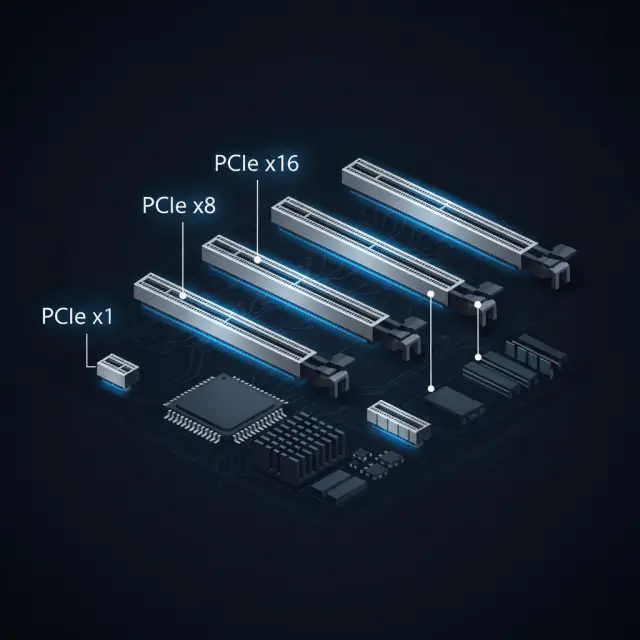
Everything about PCIe generations, lane configurations, bandwidth math, and how slots connect to your CPU and chipset.
8 min read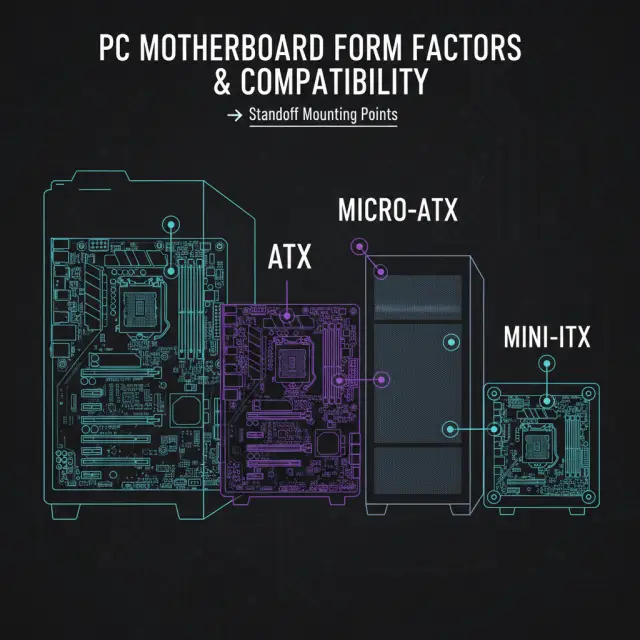
Form factors, airflow designs, drive bays, and picking the right case for your motherboard and storage configuration.
7 min readWhen slot sharing is why a drive vanished, why a SATA-mode M.2 drive in a PCIe-only slot shows up nowhere, and the BIOS steps worth trying.
8 min readThe BIOS lists the drive but the Windows installer finds nothing. What the Intel VMD setting does, the two ways past it, and why it is an install-time decision.
8 min read