The short version
Before you conclude the drive is dead, rule out the two things that are the board's design rather than a fault. First: not every M.2 slot speaks SATA. Put a SATA-mode M.2 drive in a slot wired for PCIe only and nothing appears, on a perfectly healthy board and a perfectly healthy drive. Second: populating an M.2 slot can switch off a specific SATA port, so the drive that vanished may be the SATA one rather than the M.2 one. Which slot behaves which way is decided per board, and the only place it is written down is your board's manual.
First, Narrow It Down
"Not detected" covers two different problems with two different sets of causes, and the fastest thing you can do is work out which one you have. Go into the BIOS and look at the storage list.
| The BIOS does not list the drive | A motherboard-side problem. Everything from here to the BIOS steps section applies. |
| The BIOS lists it, Windows does not | The board found it. Skip to In BIOS but Not File Explorer. |
| A SATA drive disappeared when you fitted the M.2 | Almost certainly slot sharing working as designed. Go to the sharing section. |
One more split worth making early. If the machine never reaches the BIOS at all — no display, a debug LED stuck on — then the drive is not your problem yet and this is the wrong page. Our guide to a board that will not POST covers that case, including the BOOT LED, which lights for storage the board cannot find a bootable device on.
The SATA-Mode M.2 Trap
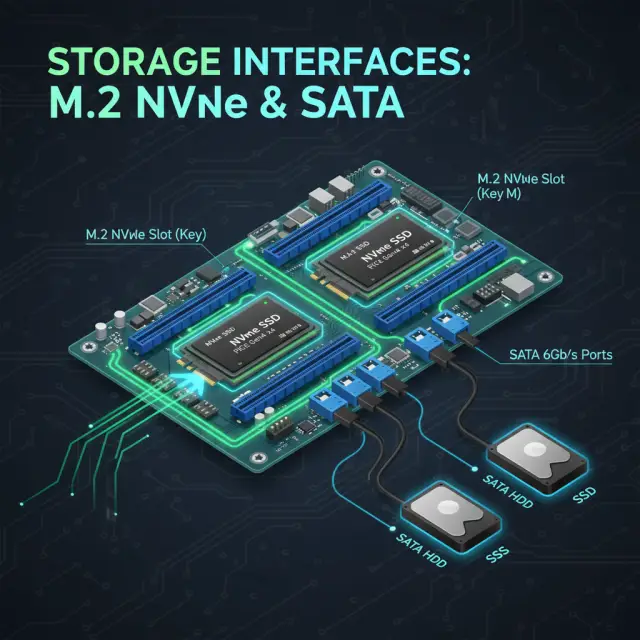
M.2 is a slot shape, not a protocol. A drive in that shape can talk to the board over PCIe, which is what NVMe drives do, or over SATA, which is what SATA M.2 drives do. They are physically interchangeable and electrically are not the same thing at all. Our storage guide's M.2 NVMe section covers the form-factor-versus-protocol distinction and the B+M-key and M-key notches that go with it.
Here is the part that catches people. On modern boards, the secondary M.2 slots are very often wired for PCIe only. Fit a SATA-mode M.2 drive into one and it does not appear anywhere — not in the BIOS, not in Windows, not as an unrecognised device. There is no error, because from the board's point of view nothing was plugged in.
ASUS documents this behaviour on its own boards in plain terms. Using the slot names on one of its layouts as the worked example: "M.2_1 port can support SATA mode and PCIE mode", while "M.2_2 port can only support PCIE mode and can't support SATA mode." The consequence follows directly — "Therefore, if you connect SATA mode M.2 SSD to M.2_2 port, the computer can't recognize."
Those slot names are an example, not a rule
M.2_1 and M.2_2 are the labels on the ASUS board that ASUS used to illustrate the point. They are not a standard. Slot numbering, which slot is CPU-attached, and which slots accept SATA-mode drives all differ between boards, between vendors and between chipset generations. Take the behaviour from the quote above; take the specific slot from your own board's documentation.
Two practical consequences. If you are buying, check whether the drive you are about to order is NVMe or SATA M.2 before you check anything else — on a board whose spare slots are PCIe-only, a SATA M.2 drive is not a cheaper option, it is a drive that will not work. If you already own the drive and it is a SATA M.2, try it in the slot the board documents as supporting SATA mode, which on many layouts is the primary one.
The reverse case exists too and fails the same silent way: some budget boards ship an M.2 slot that is SATA-only, and an NVMe drive fitted to it will not be detected either. Either way the fix is the same — match the drive's protocol to the slot's, using the board's specifications rather than the slot's appearance, because the two slot types look identical.
The Slot That Turns Off Your SATA Ports
The second cause is not really a detection failure at all. It is a drive that was working and is now gone, and it usually goes missing on the same day an M.2 drive arrives.
A chipset has a fixed budget of lanes, and board designers spend it twice: the same lanes are wired to an M.2 slot and to one or more SATA ports, with the board routing them to whichever one is in use. Populate the M.2 slot and the paired SATA port goes dark. Our M.2 slot sharing section explains the mechanism, and the PCIe bandwidth explainer covers why the lane budget is finite in the first place.
ASUS's worked example again, on the same board layout: "M.2_1 port is shared with SATA6G_1 port." And the result when both are populated — "Therefore ,when connecting the device to the two ports, SATA6G_1 port will be closed." The board is explicit about which one wins: "the computer can only recognize M.2 SSD in M.2_1 port, and it can't recognize the hard disk in SATA6G_1."
The fix, in ASUS's own words, is to move the cable rather than remove the drive: "If you need computer to recognize the hard disk in SATA6G_1,please connect Sata cable of SATA6G_1 port to other Sata port". A board that disables one SATA port when an M.2 slot is populated usually leaves the others alone, so the disappeared SATA drive comes straight back on a different connector.
Why this reads as a fault when it isn't
Nothing announces it. There is no BIOS warning, no beep, no entry in a log. You install a new SSD, reboot, and an existing drive is simply not in the list any more — which looks far more like the new drive having broken something than like a documented lane-routing decision. Counting the drives that are present, rather than hunting for the one that is absent, is usually what makes it click.
Which Slot on Your Board
Everything above describes how the behaviour works. Which slot on which board does what is not something any general guide can tell you, and this is the point at which you have to look yours up. There are three places to look.
- The board manual's storage configuration table. This is the authoritative one. Every manual has a table or diagram listing each M.2 slot, the modes it supports, and which SATA ports it disables when populated. It is usually in the hardware chapter near the M.2 installation instructions. If you do not have the paper copy, the PDF is on the board's support page on the vendor's site.
- The vendor's specification page for your exact model. The storage section lists each M.2 slot with its lane source and supported modes. Match the model exactly, including WiFi, DDR4/DDR5 and revision suffixes — those variants can differ in their storage wiring, and a specification page for the wrong edition of the same model name is worse than no page at all. If you are not sure which board you have, our guide to identifying your motherboard model covers reading it off the board and out of Windows.
- The M.2 row on our review pages. Every board we review carries an M.2 count in its specification table. That tells you how many slots the board has, which is the number to check your plans against — it does not tell you the sharing behaviour of each one, which stays a manual question. Browse the reviews index for your board.
The CPU-attached slot is the safer bet
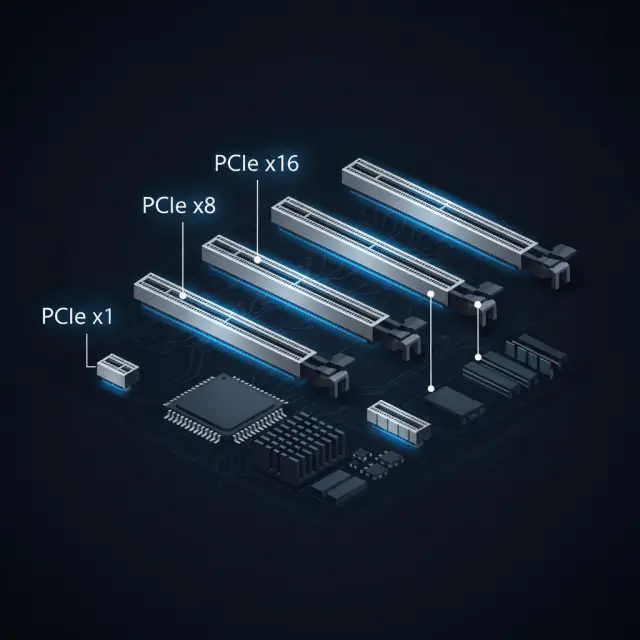
As a general pattern, the M.2 slot nearest the CPU socket is wired to the processor's own lanes rather than the chipset's, and slots on CPU lanes are much less likely to be sharing anything with a SATA port. The slots further down the board are more often chipset-attached, and those are where the trade-offs live. This is a tendency and not a guarantee — boards do vary — but if you have a free choice of slot and want the fewest surprises, start at the top. M.2 and PCIe covers which lanes come from where.
BIOS Steps Worth Trying
If the slot and the protocol match and the drive is still not listed, there is a short list worth working through before suspecting hardware. These are ASUS's documented steps; the key names differ on other vendors' boards, and the screen usually tells you which key does what.
- Get into the BIOS. ASUS's instruction is: "After the computer powers on, please immediately press 'delete' key on the keyboard to enter EZ Mode."
- Load the defaults and save. "Press 'F5' to set the BIOS to default setting", then "Press 'F10' to save the BIOS setting" — ASUS's full step is to "press 'F10' to save BIOS setting and click [OK] to reboot." This clears a storage-related setting changed at some point and forgotten, which is a more common cause than it deserves to be.
- Update the BIOS. "Please try to update the latest version BIOS from ASUS official website." Firmware support for newer drives and newer controllers arrives in BIOS updates, and a board older than the drive is a real scenario. Our BIOS update guide covers doing it safely, including the point that an update generally resets your settings, so do it before you spend time configuring anything.
- Try the drive in a different M.2 slot — ideally the CPU-attached one, for the reason in the section above. If it appears there, you have learned something about the slot rather than about the drive.
- Reseat it. An M.2 drive sits at an angle until the retaining screw pulls it flat, and one that was never fully seated can look installed. Worth thirty seconds before anything more drastic.
It Shows in BIOS but Not in File Explorer
If the BIOS lists the drive, the motherboard's part is done. A brand-new drive does not appear in File Explorer until Windows has initialised it and it has a volume on it, and that is expected rather than a fault. Microsoft states it directly: "When you add a new disk to your computer, the disk isn't immediately available in Windows File Explorer. First, you need to initialize the disk so it's ready for use by Windows."
One case this section does not cover: if Windows is not installed yet and it is the installer's drive list that comes back empty, the cause is usually the BIOS storage mode rather than disk initialisation — see BIOS storage mode and the empty drive list.
The tool is Disk Management, which Microsoft's documented route opens by entering "Create and format hard disk partitions" at the Start menu and running it as administrator. The new drive appears there, you initialise it, and then you "Right-click the Unallocated space on the drive, select New Simple Volume" and work through the size, drive letter and file system prompts. Microsoft's note on the partition style is that "The default partition style is GUID Partition Table (GPT)" and that "You don't usually have to worry about assigning the partition style."
Only on a drive with nothing on it
Initialising erases. Microsoft's warning is explicit: "If you want to initialize a disk already in use, first save the existing files to a backup location. The initialization process erases all data on the disk." If the drive is not new — if it came out of another machine with data you want — do not initialise it. That is a data-recovery question, and it is not one this page or any BIOS setting answers.
Beyond that we are into Windows rather than motherboards, and Microsoft's own documentation linked below is a better guide to it than we would be.
When the Drive Really Is Faulty
Sometimes it is the drive. That conclusion is worth reaching last, because the two motherboard-side causes above are both common and both silent, and neither leaves any evidence that would distinguish it from a dead drive.
You have got here legitimately if the drive's protocol matches a slot documented to support it, it does not appear in a second slot either, the BIOS has been reset to defaults and updated, and no other drive disappeared when you fitted it. At that point ASUS's own last step is the sensible one: "the hard disk may have the physical damage or the SSD is damaged. Please try to replace with a properly working hard disk or SSD."
Swapping in a drive you know works is the test that settles it, and it settles it in both directions — a known-good drive that also fails to appear in that slot points back at the board or the slot, not at the SSD you were about to return.
What we checked, and what we didn't
Every quoted sentence on this page comes from the vendor and platform documentation linked below, read on 9 September 2026. Nothing here is a test result: no drive was fitted, no board was booted, and no configuration was measured. The slot names in the ASUS quotes are ASUS's example board, reproduced as an example and not as a rule that holds across vendors or across that vendor's own range. We have deliberately not named a sharing configuration for any specific board on this page, because that is a per-model fact that belongs in that model's manual and its own specification table.
Sources
- ASUS: [Motherboard] Troubleshooting - Cannot find the hard disk drive or SSD(M.2) after motherboard powers on — the SATA-mode versus PCIE-mode slot distinction, the M.2-to-SATA port sharing example and its workaround, the F5/F10 BIOS reset steps, the BIOS update advice, and the physical-damage last resort
- Microsoft Learn: Initialize New Disks — that a new disk is not available in File Explorer until it is initialised, the Disk Management route, the New Simple Volume steps, the GPT default, and the warning that initialising erases existing data
Published 9 September 2026. All vendor and platform documentation quoted above was read on 9 September 2026.